
How to Verify a Google Account With a Virtual Number
How to Verify a Google Account With a Virtual Number
Creating or signing in to a Google Account can be frustrating when Google asks for a phone number and you do not have a mobile number available. You may be traveling, unable to get a local SIM, or your current number may not receive the message. Google can also reject a number that has already been used too many times for verification. Google says it limits how often a number can be used, and SMS delivery may sometimes be delayed.
In these situations, a virtual number may offer a convenient way to receive a verification SMS online. This guide explains what to expect, how to find a number on SMSUS, and how to enter the code during Google registration.
Why consider a virtual number?
A virtual number can be accessed online, so you do not need to insert a physical SIM into your phone to check for a message. If you only need to receive a one-time code, renting a number can be a convenient option when your personal number is unavailable or cannot receive the SMS.
The number still has to be accepted by Google. Some numbers may have been used before, may not receive Google's message, or may no longer be available after the rental ends. A virtual number is not a guaranteed way to pass verification, and a rented number should not be your only account recovery method.
Rent a number on SMSUS
- Open the SMSUS Rent Number page and sign in or create an SMSUS account.
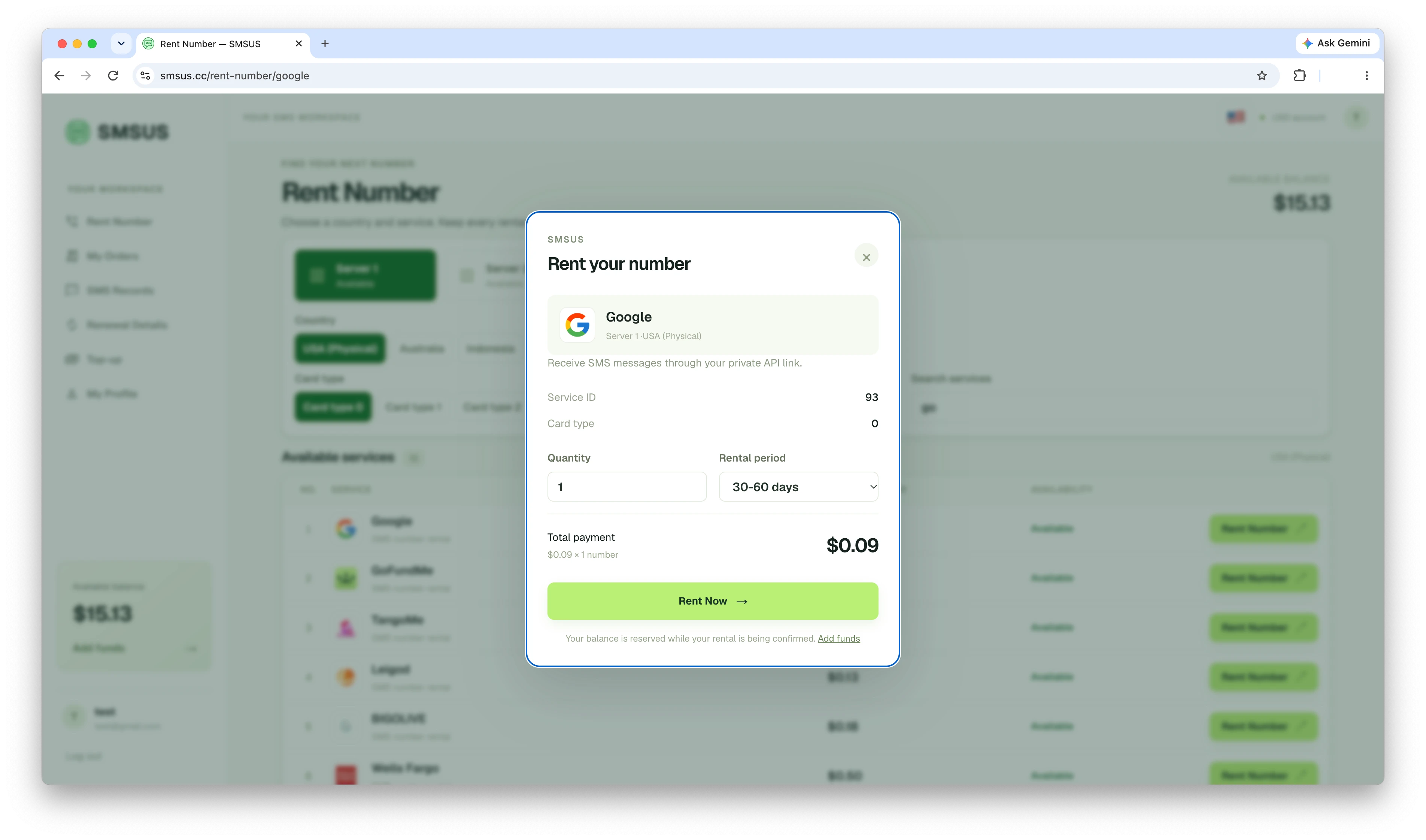
- Choose an available server and country, then search the service list for Google. Service names and stock can vary by server and country. Continue only if a suitable Google option is listed.
- Select the Google service and review the available quantity, rental period, and total price. Choose one number for your registration and confirm the rental.
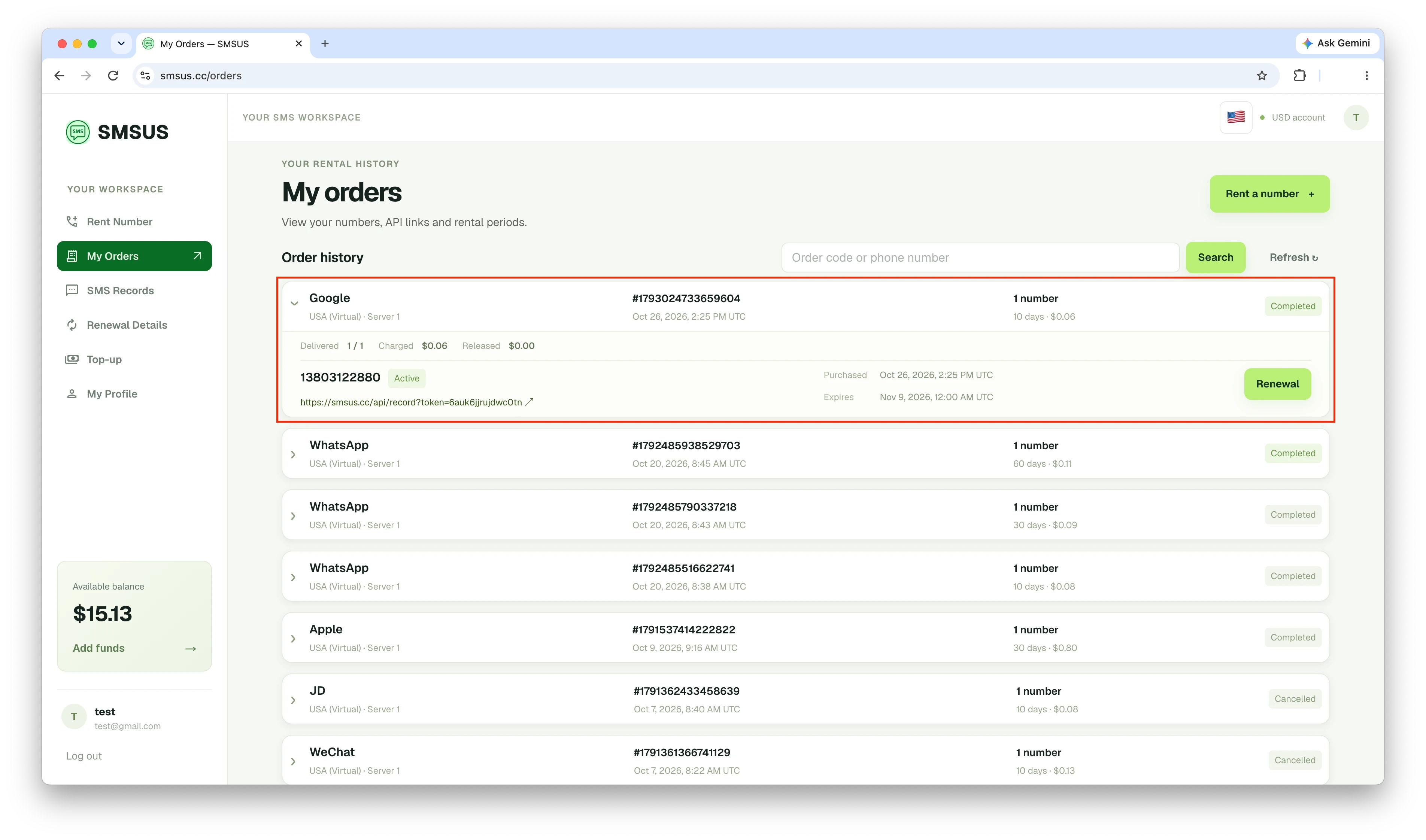
- Wait for SMSUS to confirm the order. Then open My Orders and expand the matching order to find the delivered phone number.
- Open the API link shown on that number's row to check its SMS response. Keep this link private because it provides access to messages for the number.
Check that the order is confirmed before using the number. Availability, price, and rental duration are shown in the current catalog and order details, and can vary.
Register your Google Account
After you have a confirmed number, continue with Google's normal account creation process:
- Open Google's account sign-up page and enter your account details.
- If Google asks for phone verification, select the country that matches the rented number and enter the number in the format requested.
- Request the text message if that option is shown.
- Return to the number's SMSUS API link and refresh the response when you are waiting for the message.
- Copy the verification code from the SMS and enter it on Google's page.
- Follow Google's remaining on-screen steps to finish creating the account.