
How to Rent a Phone Number and Receive SMS with SMSUS

Rent a number and receive SMS with SMSUS
Need a phone number for an online service that sends a one-time verification message? SMSUS lets you browse rental options by server, country and service, then check incoming messages through a private API link for each delivered number. This guide follows the current SMSUS interface, from choosing a service to opening the message response.
The Rent a number page. Availability and prices come from the live catalog and can change.
Before you start
You can browse the catalog without signing in. To complete a rental, create an SMSUS account or sign in to your existing account. Prices and account balances are shown in USD. Make sure your available balance can cover the total shown in the rental dialog. If it cannot, use the Add funds link in the dialog to open the deposit page, follow one of the payment options currently shown there, and return after the deposit is credited.
A rented number is a temporary service. Check the selected rental period and expiry shown in your order, and use the number only for services that allow temporary or rented numbers. Do not rely on it as a permanent recovery number.
1. Choose a server, country, and service
Open SMSUS Rent Number page from the SMSUS navigation. At the top of the page, choose an available rental server. The country buttons filter the catalog; the current interface includes options such as USA (Virtual), Australia, Indonesia, United Kingdom, Hong Kong, Canada, and USA (Physical). The countries available to you may vary by server.
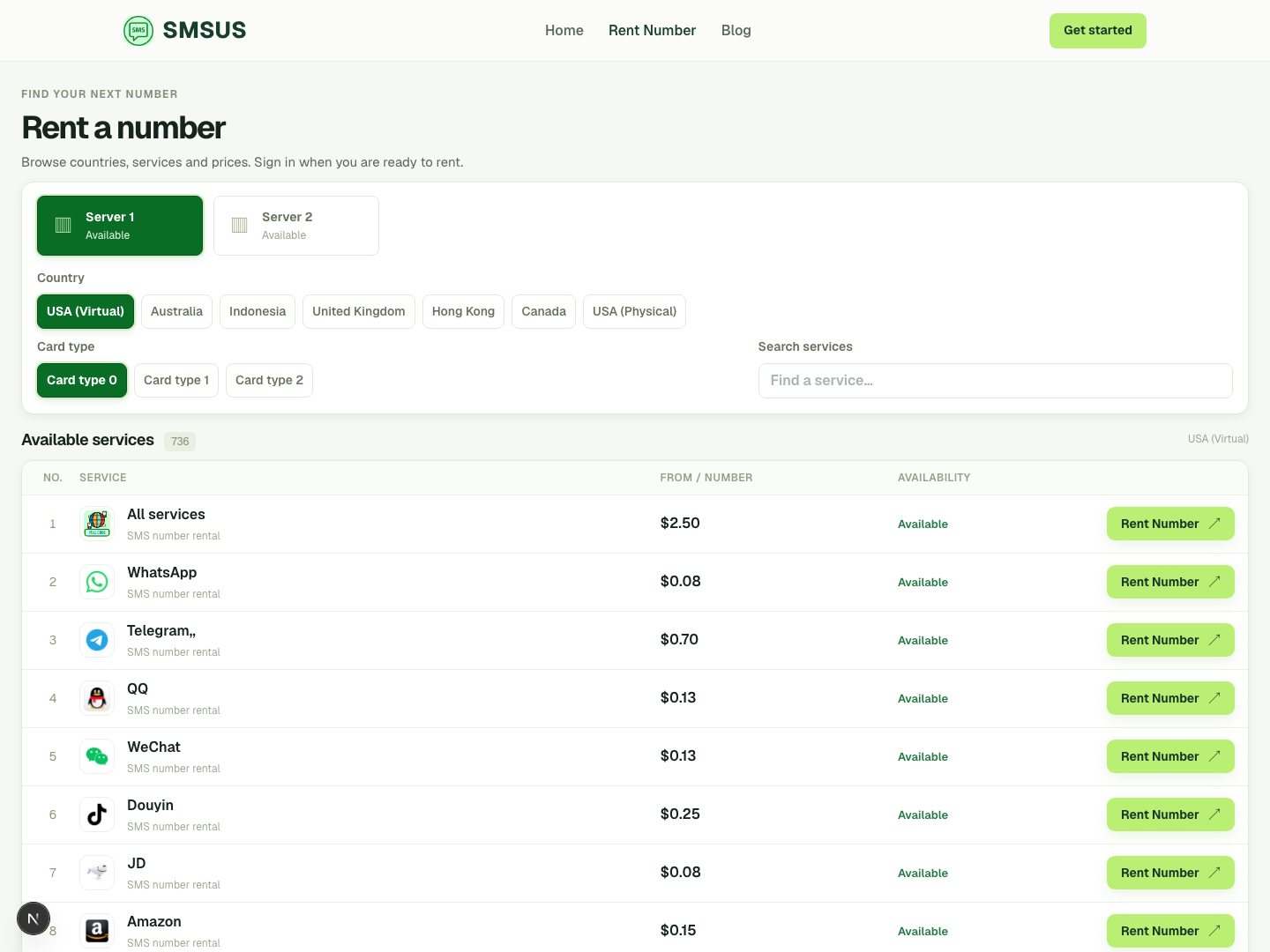
If the selected server offers card types, choose one of the Card type options. These are catalog filters, so leave the default selection if you do not have a specific requirement. Use Search services to find an app or service by name instead of paging through the list.
Each service row shows its name, a starting price per number, and an availability label. Compare the country, service, and displayed price before continuing. Prices and stock are live catalog data; the final rental dialog is the place to confirm the price for your chosen period. Click Rent Number on the service row to open the dialog.
2. Set quantity and rental period
The Rent your number dialog repeats the selected service, server, country, service ID, and card type so you can verify the selection. Enter a Quantity. The dialog limits the quantity to the service’s available stock and to 20 numbers per request.
Next, choose a Rental period from the enabled options. Depending on the service, the current menu can show ranges such as 10–30 days, 30–60 days, or More than 60 days. Some periods may be unavailable for a particular service. SMSUS updates the Total payment using the displayed unit price multiplied by your quantity. Review the total, available balance, and service details before clicking Rent Now.
If the dialog says you need to log in or create an account, complete that step and return to the catalog. If your balance is too low, add funds before submitting. SMSUS reserves the required balance while the provider confirms the rental.
3. Wait for confirmation
Click Rent Now once and keep the page open while the request is confirmed. The dialog may show Confirming your rental… and explain that confirming the number and API links can take up to two minutes. On success, SMSUS takes you to My Orders. If confirmation takes longer than expected, open My Orders and check the order status before trying again; this helps you avoid placing a duplicate rental while an earlier request is still being checked.
4. Find your number in My Orders
In My Orders, find the order for your selected service and expand its row. The order summary shows details such as country, server, order code, quantity, rental duration, total, and status. Once a number has been delivered, its section shows the phone number, its current status, purchase date, expiry date, and an API link. Some eligible numbers also show a Renewal button.
Copy or open the API link for the specific number you want to check. Each delivered number has its own link, so make sure you use the link on the matching phone-number row. The order code link can list the APIs for the order; the individual number link is the direct way to request that number’s SMS data.
5. Read the incoming SMS
Open the number’s API link in a new browser tab. SMSUS returns a JSON response from the SMS service. The response keeps the provider’s data and adds identifying fields such as phone_number, service_name, and country_name under data. Look inside the returned data object for the message and any code, sender, or timestamp fields that the provider supplies. Exact field names depend on the service.
If the message has not arrived yet, wait briefly and reload the API page to request the latest response. Receiving a code depends on the service sending the SMS successfully and on the rental still being active and unexpired. The API link contains an access token for that number, so treat the full URL like a private key: do not post it publicly or share it with anyone who should not be able to read that number’s messages.
Quick checklist
- Pick the correct server, country, card type, and service.
- Confirm stock, rental period, quantity, total price, and balance in the dialog.
- Wait for the order status to confirm before retrying a slow request.
- Open the API link attached to the delivered number in My Orders.
- Refresh the JSON response if you are still waiting for the SMS, and keep the token URL private.